
This post documents the hands-on exercises I completed in my own environment, based on Chapters 4–5 of the book, as part of the 2026 Machine Learning Platform Engineering book study.
I worked through the process of connecting MLflow, Feast, and Kubeflow Pipelines, as discussed in Chapters 4–5, to see where model files and feature data are stored and how the next step reads them.
For the environment setup and execution sequence, I referred to John Kim's “04. Connecting Experiments, Features, and Pipelines” and the ml-platform-book-env repository. Since I use Ubuntu 26.04.1 LTS on WSL2, I adapted the PowerShell commands to run in Bash. This post records the preparation needed in WSL and the results I actually checked while reproducing the book's exercises with that guide.
1. Overview
Here is the overall flow:
Chapter 4: Read CSV → Train three models → Track results in MLflow → Register a model
Chapter 4: Upload feature parquet files → Register Feast definitions → Retrieve historical/online features
Chapter 5: Read target users → Retrieve Feast features → Predict with the registered model → Save parquet
“Batch inference” means reading multiple inputs together and saving their predictions to a file. This differs from an API server that responds immediately to each individual request.
Breaking down the three tools this way made their roles clearer.
Tool The question it answers in this exercise What it produces or stores
| MLflow | What settings were used for training, and which model file should I use? | Experiment records, metrics, and model versions |
| Feast | Which data and reference time should I use to retrieve this user's features? | Feature definitions, historical retrieval results, and feature values in Redis |
| KFP | In what order should prediction tasks run, and how should they pass files between them? | Execution records, task logs, and artifacts |
A feature is an input to a model. This example uses information such as education, occupation, and relationship status. An artifact is a file created during execution, such as a model file, a PNG chart, or a parquet file passed between steps.
2. Preparing WSL: Separating System Python from the Exercise Environment
My WSL environment already had Python 3.14.4, git, and uv installed. I kept the exercise environment separate to avoid conflicts with the existing setup. Docker, kind, and kubectl were not installed in WSL, so I prepared the environment by installing Docker Engine inside Ubuntu rather than using Docker Desktop.
Install the required packages in a WSL terminal:
sudo apt-get update
sudo apt-get install -y docker.io
sudo systemctl enable --now docker
sudo usermod -aG docker "$USER"
Docker group membership changes take effect in a new login session. If you want to continue in your existing WSL terminal, run newgrp docker to enter a new shell with the group applied, then check docker info.
kind creates a small Kubernetes cluster inside Docker containers. It lets you practice with Kubernetes Pods and Services without preparing several separate servers. kubectl sends commands to that cluster.
mkdir -p ~/.local/bin
curl -fsSL https://kind.sigs.k8s.io/dl/v0.27.0/kind-linux-amd64 \
  -o ~/.local/bin/kind
curl -fsSL https://dl.k8s.io/release/v1.32.2/bin/linux/amd64/kubectl \
  -o ~/.local/bin/kubectl
chmod +x ~/.local/bin/kind ~/.local/bin/kubectl
export PATH="$HOME/.local/bin:$PATH"
The versions used in this run were as follows. I left Ubuntu's system Python unchanged and used a separate Python 3.11 virtual environment for the book exercises.
Item Verified value
| Operating system | WSL2 / Ubuntu 26.04.1 LTS |
| Docker Engine | 29.1.3 |
| kind | 0.27.0 |
| Kubernetes node image | kindest/node:v1.31.6 |
| kubectl client | 1.32.2 |
| uv | 0.12.13 |
| Python for the exercises | 3.11.16 |
| MLflow server / Python client | 3.0.0 / 3.0.0 |
| Feast | 0.40.1 |
| KFP server / Python SDK | 2.4.1 / 2.9.0 |
| scikit-learn | 1.5.2 |
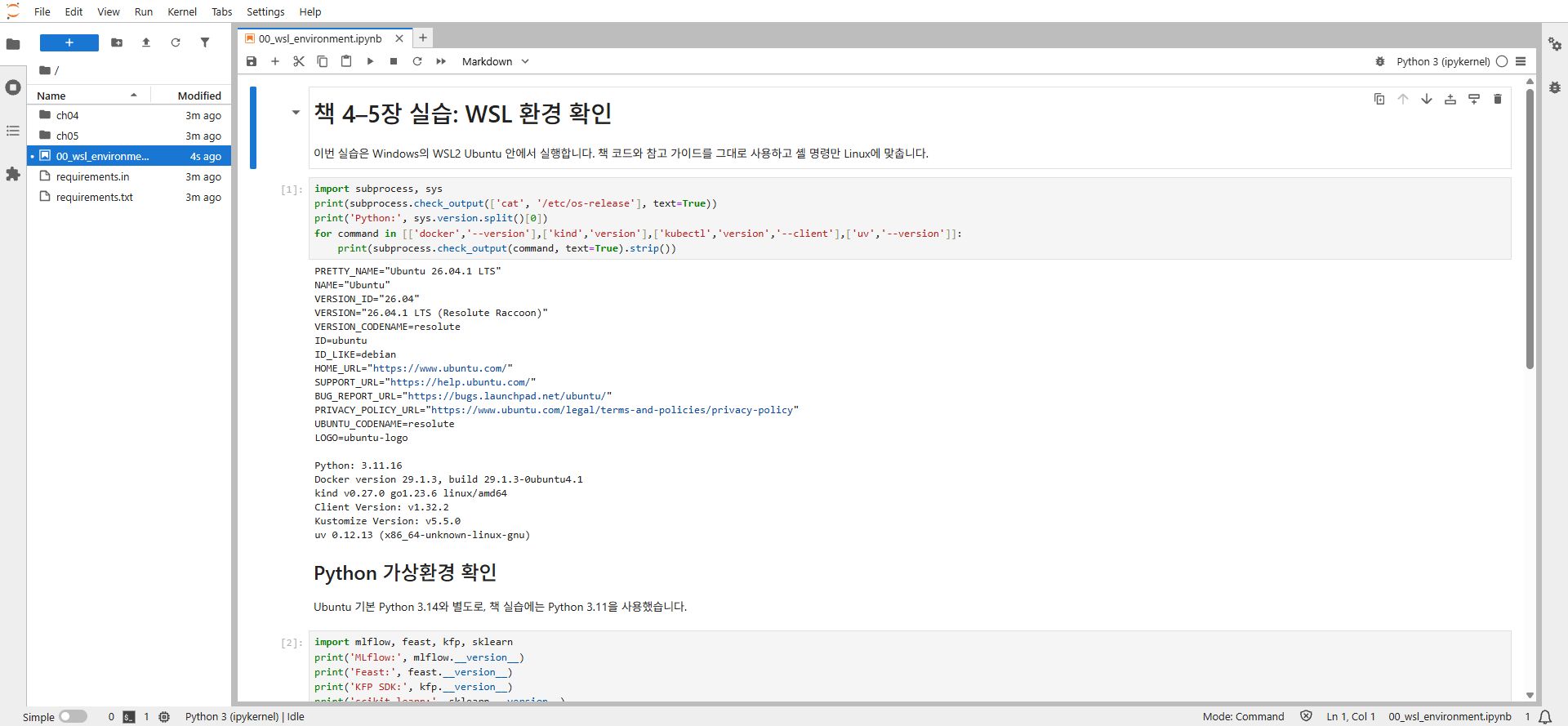
Checking the WSL operating system and Python environment in JupyterLab
A virtual environment is a directory containing the Python interpreter and packages used for a particular project. Keeping it separate from Ubuntu's Python makes it easier to match the versions required by the book.
3. Preparing the Repositories and Cluster
I kept the Docker images and Python packages in WSL's Linux filesystem. The working directory for this exercise was ~/project/ml-platform-lab/ml-platform-book-env. You can create the project under your own home directory when reproducing it.
mkdir -p ~/project/ml-platform-lab
cd ~/project/ml-platform-lab
git clone https://github.com/johklo/ml-platform-book-env.git
cd ml-platform-book-env

git clone https://github.com/practical-mlops/chapter-4.git upstream/chapter-4
git clone https://github.com/practical-mlops/chapter-5.git upstream/chapter-5

uv venv .venv-book --python 3.11
uv pip install --python .venv-book -r book/requirements.txt
source .venv-book/bin/activate

python bookenv.py check
python bookenv.py up
Running python bookenv.py up creates the kind cluster and prepares KFP, storage, PostgreSQL, Redis, and the MLflow server. The first run needs some time to download the container images.
This exercise uses a standalone KFP installation, rather than the full Kubeflow platform. It does not set up Kubeflow Notebook servers or an integrated authentication interface. JupyterLab runs directly in WSL.
When a Pod Restarted During Setup
During this run, metadata-grpc-deployment showed CrashLoopBackOff. This means a container is repeatedly failing and being restarted.
kubectl --context kind-book-env -n kubeflow get pods
kubectl --context kind-book-env -n kubeflow \
  logs deploy/metadata-grpc-deployment --tail=20
The logs contained this message:
MySQL database was not initialized. Please ensure your MySQL server is running.
At that point, the MySQL Pod was still in ContainerCreating. Another service had tried to connect before the image download and database preparation were complete. Before changing manifests or database authentication settings, I checked whether the dependency was ready.
Once MySQL was ready, the restarted metadata service recovered to 1/1 Running. I did not need to change the configuration or manually recreate the Pod. Finally, the up command printed The environment is ready. Next: python bookenv.py forward.

Service status checked with kubectl get pods after setup completed
READY 1/1 means the Pod's single container is ready. RESTARTS counts how many times it has restarted; it does not, by itself, mean the service is currently failing. I therefore checked both its status and readiness.
4. Opening WSL Services in a Windows Browser
In a separate WSL terminal, activate the virtual environment and start port forwarding:
cd ~/project/ml-platform-lab/ml-platform-book-env
source .venv-book/bin/activate
python bookenv.py forward
Port forwarding creates a connection between a port on your PC and a service inside the cluster. It lets the browser connect through localhost without knowing the Kubernetes service address directly.
Browser / client address Purpose
| http://localhost:8080 | KFP UI |
| http://localhost:5000 | MLflow UI and API |
| http://localhost:8888/buckets/ | SeaweedFS storage browser |
| localhost:9000 | S3 API |
| localhost:6379 | Redis |
I used port 8890 for JupyterLab to avoid conflicting with the storage browser on port 8888.
jupyter lab --notebook-dir book --port 8890 --ip 127.0.0.1 --no-browser
Open the URL containing the token printed by JupyterLab in your Windows browser. In this exercise, I checked the WSL services using Chrome on Windows.
Why Create Several Buckets?
A bucket is a top-level container for files in S3 storage. Even when using the same storage service, separating training CSVs, model files, feature definitions, and final outputs makes it easier to see what each step reads and writes.
python bookenv.py buckets
Bucket What it stores in this exercise
| mlflow-datasets | Training and test CSVs |
| mlflow-artifacts | Models, charts, and the input column list |
| feature-data-sets | Source feature parquet files and inference targets |
| feature-registry | Feast definitions and connection settings |
| inference-datasets | Final predictions |
| mlpipeline | Intermediate files passed between KFP steps |
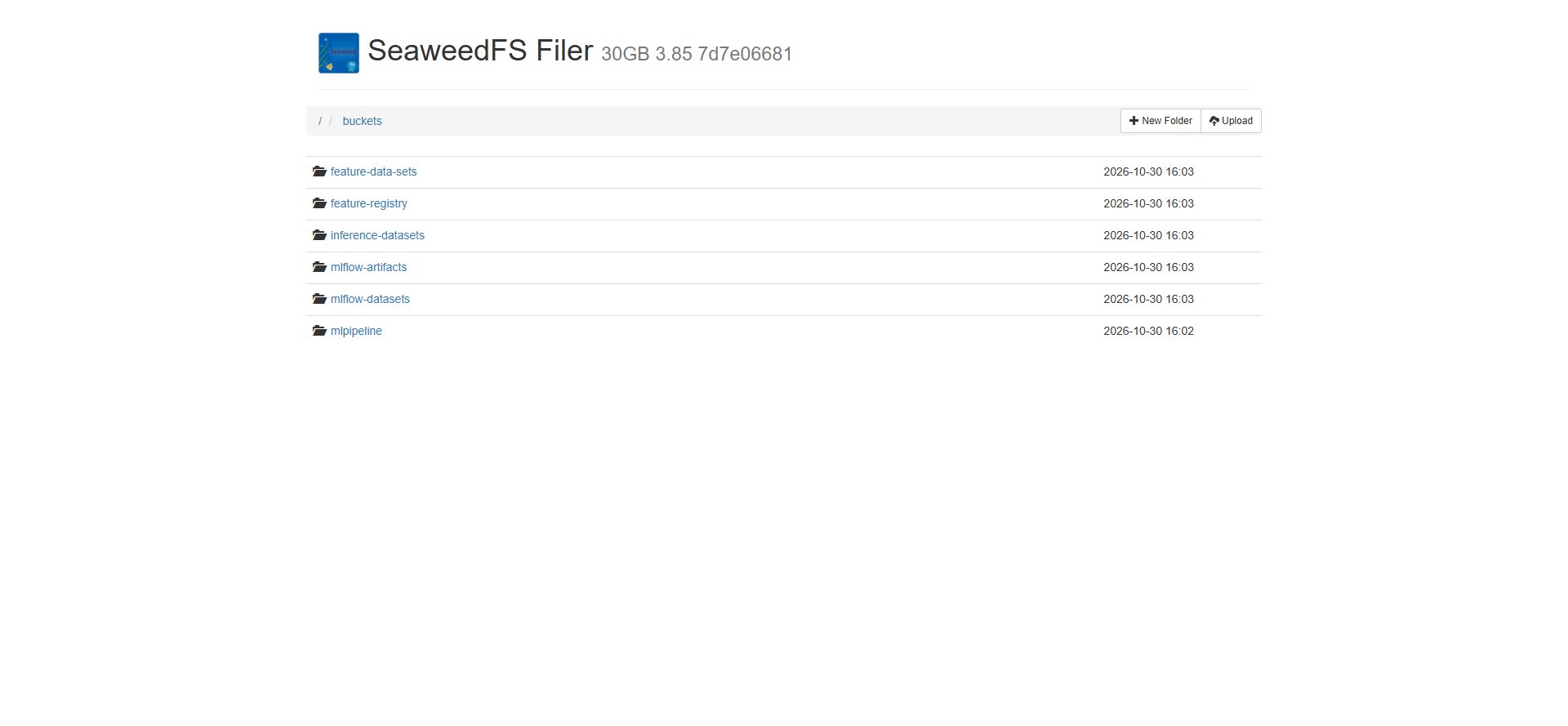
Exercise buckets created in this cluster
5. Chapter 4 — MLflow: Recording Training Results So They Can Be Found Again
I ran ch04/01_mlflow_tracking.ipynb from top to bottom in JupyterLab.
The first part prepares data paths and storage connection settings. It then reads the income classification CSV and examines the category distributions. The dataset in this run had 30,162 rows and nine columns.
The income-classifier Experiment in MLflow contains one data exploration run and three model training runs. An Experiment is similar to a folder grouping related executions, while a Run is the record of one execution within it.
The three models trained were Decision Tree, Random Forest, and XGBoost. scikit-learn and XGBoost perform the training; MLflow records the settings, scores, and files.
Model MLflow run Test ROC AUC Test accuracy
| Decision Tree | fortunate-goat-977 | 0.815114 | 0.818333 |
| Random Forest | fearless-moose-660 | 0.857340 | 0.826786 |
| XGBoost | abrasive-crow-116 | 0.718263 | 0.821813 |
ROC AUC measures how well a classifier distinguishes between the two classes. Higher values are preferable here. However, the original code does not fix the data split or the random seeds for some models. Running the same commands may produce scores that do not exactly match this post or the reference guide.
Also, the final XGBoost cell calculates AUC using the 0/1 predictions of a binary:hinge model. It is difficult to treat this as a comparison under the same conditions as the probability-based AUC of the other two models. This table records the results produced by the book's code.
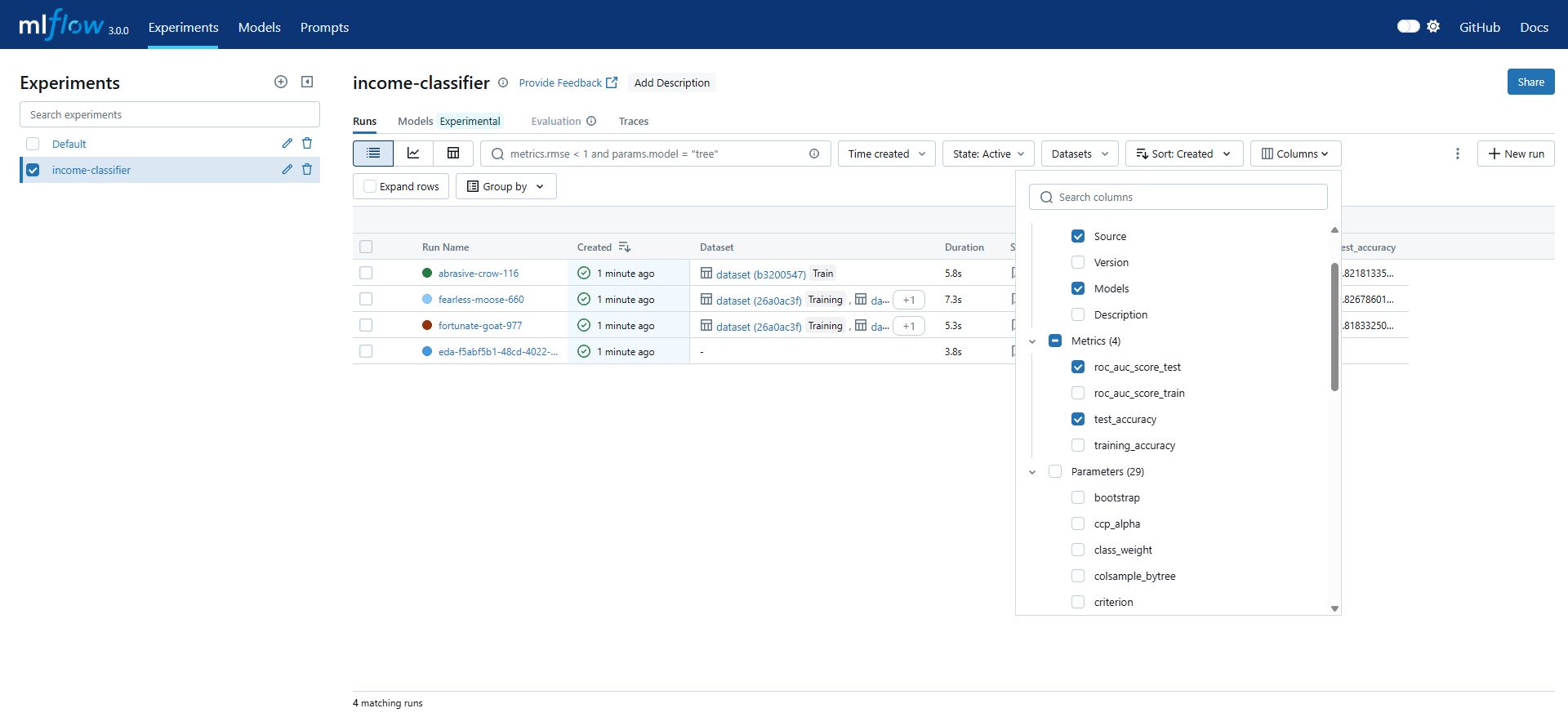
Data exploration and training runs recorded in MLflow during this execution
Where Are the Model Files?
Run names, settings, metrics, and other records displayed in MLflow are stored in PostgreSQL. The actual model and chart files are stored in the mlflow-artifacts bucket. Being able to open the UI does not guarantee that the model files were saved correctly, so the artifacts also need to be checked.
The original notebook converts categorical inputs into numeric columns and saves their order in column_list.pkl. For example, if education and occupation are expanded into several 0/1 columns, inference must supply the same columns in the same order. The Chapter 5 inference code downloads this file later.
Registering the Model
The final cell of the original notebook finds the run with the highest test AUC and registers it as random-forest-classifier. I then ran the cell added by the guide to set its stage to Production.
The selected source run was fearless-moose-660, with a test AUC of 0.857340. The model was registered as version 1 / Production. Its source run ID was 489e1a27bc8b428c9b6f8fe9af0248e3.
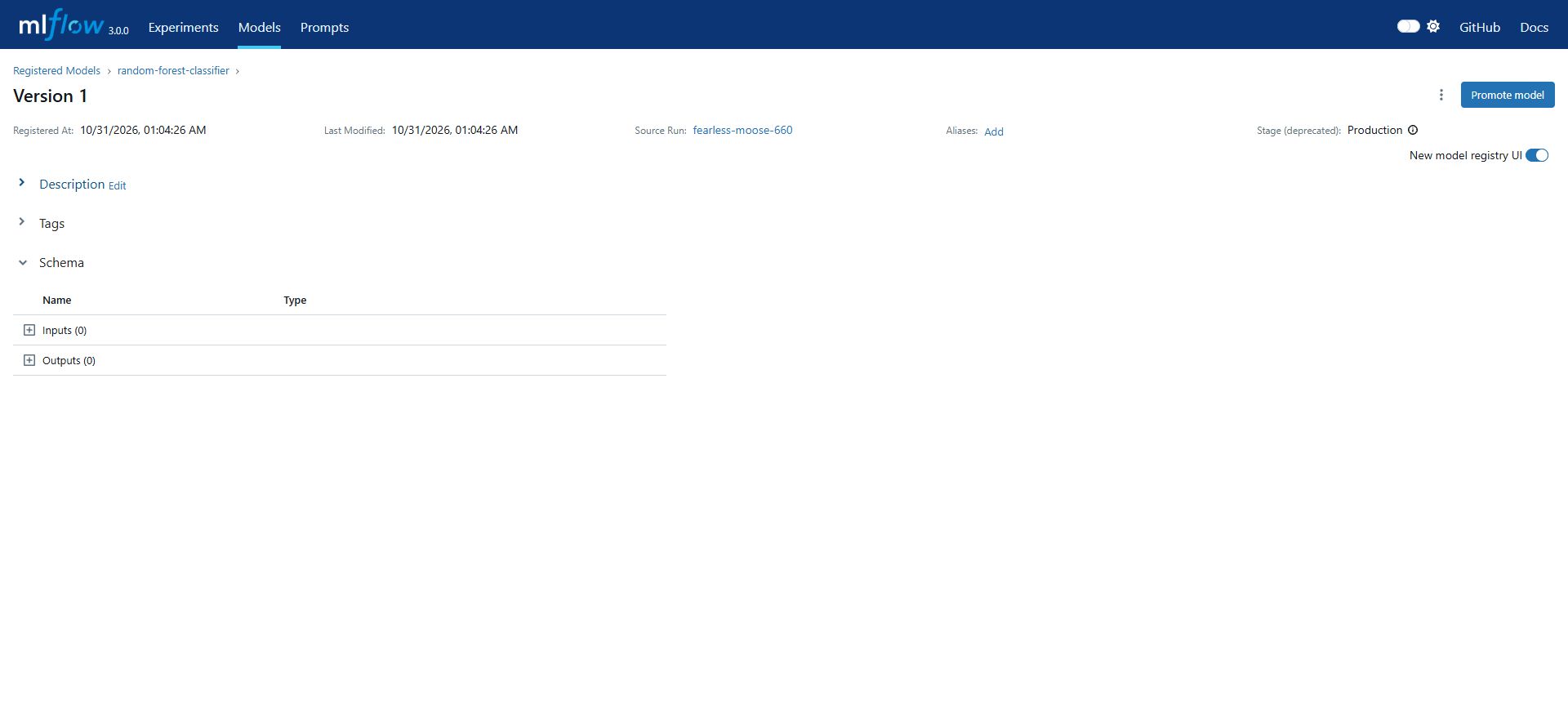
The registered model's version and source run
Production is the label used by this code to find a model version. Assigning it does not automatically deploy a prediction API. MLflow 3 emits a FutureWarning about stages, but I checked that the connection still worked with the book's code.
6. Chapter 4 — Feast: Distinguishing Feature Definitions from Feature Values
Next, I ran ch04/02_feast_feature_store.ipynb.
Reading a training CSV and using Feast are separate processes. The training notebook in this book example reads CSV files directly, and Feast is prepared separately afterward. Describing this run as “using Feast for training from the start” would therefore be inaccurate.
The Feast workflow in this exercise was:
Upload source parquet files
  → Register Entity / FeatureView definitions
  → Retrieve historical features
  → Load values into Redis
  → Retrieve online features
Term A plain-language explanation In this example
| Entity | A key identifying whose values to retrieve | user_id |
| FeatureView | A definition of features managed together | demographic, relationship, occupation |
| Registry | A catalog recording feature names, types, locations, and other metadata | A Registry file in S3 |
| Offline store | The source used to read historical features | Parquet files in S3 |
| Online store | A place to keep the latest values for fast retrieval | Redis |
apply and materialize Do Different Things
feast apply registers feature definitions in the Registry. Its logs showed messages preparing the three FeatureViews:
Deploying infrastructure for relationship
Deploying infrastructure for demographic
Deploying infrastructure for occupation
This does not mean all feature values have been loaded into Redis. feast materialize reads the source data and loads it into the online store.
I used the same period as the original README:
feast materialize 2022-09-16T00:00:00 2023-09-17T00:00:00
If you run this command directly, run it from book/ch04/feature_repo, which the notebook creates. The notebook's helper cell automatically sets that working directory.
Why Separate Historical and Online Retrieval?
Historical retrieval uses a user ID together with the reference time for the prediction to retrieve features appropriate to that time. Online retrieval quickly returns the latest values loaded into Redis.
If today's latest values are used to reproduce a prediction from the past, information that was unavailable at the time may be introduced. The Chapter 5 batch inference pipeline's use of get_historical_features() is related to this distinction.
The historical retrieval returned Sex=Male for user 9f2ac416-06e1-44a0-87bd-d4787c85bf66 as of 2023-01-30 10:59:42+00:00. The online retrieval also returned Sex=Male, but for a different user specified in the original script: 74b0638a-5742-4d1a-a03f-483794d7aa7c. These two examples do not compare changes in the same user's values. The None in the output is the return value printed by print(df.info()); it does not mean Sex is missing.
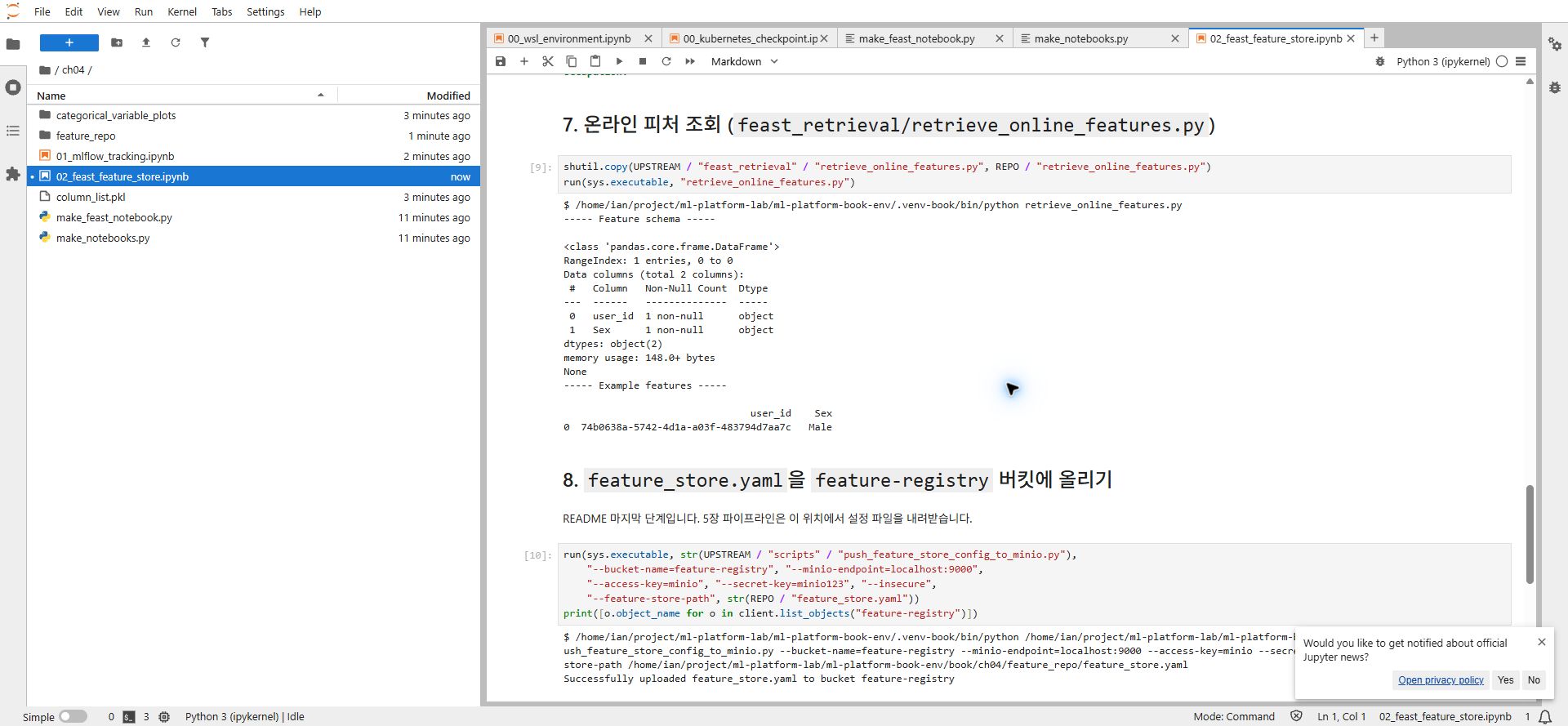
Retrieval results checked in the original Feast notebook
After completing the notebook, the local configuration files registry_local.db and feature_store.yaml are stored in feature-registry.
7. localhost in WSL and localhost in a Pod Are Different
One of the most memorable connection details in this exercise was the address.
The notebooks running in WSL connect to localhost:5000 and localhost:9000 through port forwarding. Inside a Kubernetes Pod, however, localhost refers to that Pod itself.
Execution location MLflow connection address
| Notebook in WSL | http://localhost:5000 |
| KFP task Pod | http://mlflow-service.mlflow.svc.cluster.local:5000 |
For the S3 API, the Pod uses minio-service.kubeflow.svc.cluster.local:9000.
This is why the local Feast configuration is not passed unchanged to the pipeline. During Chapter 5 preparation, the feature definitions are registered again in a Registry for the cluster, and a separate configuration file, feature_store_k8s.yaml, is uploaded.
Keeping the two configurations separate makes it easier to start with the execution location when investigating a problem that “works in the notebook but fails in the pipeline.”
8. Chapter 5 — KFP: Running Batch Inference in Four Steps
First, use the preparation script and Dockerfiles provided by the guide:
python book/ch05/prepare.py

docker build -t book-ch5/feast-job:0.1 \
  -f book/ch05/Dockerfile.feast-job upstream/chapter-5/scripts/feast
docker build -t book-ch5/components:0.1 \
  -f book/ch05/Dockerfile.components upstream/chapter-5

python bookenv.py load book-ch5/feast-job:0.1
python bookenv.py load book-ch5/components:0.1
prepare.py adapts the original components' image names and Redis settings to this environment. Building an image with Docker and loading it into the kind node are separate operations, so I ran load after the builds.
The guide's Dockerfiles replace an old Debian buster base image with bookworm and align the inference environment's scikit-learn version with the training environment's version, 1.5.2. These fixes were already included in the reference guide; they were not newly discovered or implemented during my exercise.
Feature Definitions and Input Files for the Cluster
kubectl --context kind-book-env apply -f book/ch05/feast-job.yaml
kubectl --context kind-book-env -n kubeflow wait \
  --for=condition=complete --timeout=300s job/feast-job
kubectl --context kind-book-env -n kubeflow logs job/feast-job

python book/ch05/upload_inputs.py

cd upstream/chapter-5
python inference_pipeline.py
cd ../..
grep 'image:' upstream/chapter-5/income_classifier_pipeline.yaml
feast-job registers the feature definitions used by the Pods. upload_inputs.py uploads the cluster configuration and the inference target file. The final Python command compiles the pipeline definition into executable YAML.
All four components referenced book-ch5/components:0.1 in this run. Creating the YAML does not execute the tasks. The pipeline must be registered with the KFP server and a run started before execution can be checked.
Registering and Running the Pipeline
The reference guide uploads the YAML and starts the run through the UI. In this exercise, I used the Python SDK in WSL to register and submit the same YAML and parameters, then checked the resulting run and graph in the KFP UI. I disabled caching so all four components actually ran.
import json
from pathlib import Path
import kfp

# Run from the repository root
client = kfp.Client(host="http://localhost:8080")
pipeline_id = client.get_pipeline_id("income-classifier-pipeline")
if not pipeline_id:
    pipeline = client.upload_pipeline(
        "upstream/chapter-5/income_classifier_pipeline.yaml",
        pipeline_name="income-classifier-pipeline",
    )
    pipeline_id = pipeline.pipeline_id

version = client.list_pipeline_versions(pipeline_id).pipeline_versions[0]
experiment = client.create_experiment("income-classifier")
params = json.loads(Path("book/ch05/run-parameters.json").read_text())
run = client.run_pipeline(
    experiment.experiment_id,
    "income-classifier-wsl-run-1",
    pipeline_id=pipeline_id,
    version_id=version.pipeline_version_id,
    params=params,
    enable_caching=False,
)
print(run.run_id)
I also encountered this error while using the SDK to run the registered pipeline:
both `pipeline_id` and `version_id` are required
My submission code had passed only the pipeline ID. After retrieving the registered pipeline's version ID and passing it to run_pipeline() as well, the run was created. This was an issue in the SDK submission code added for this exercise, rather than a failure in the book's inference components.
The main parameters were as follows. For the remaining values, I used the guide's book/ch05/run-parameters.json.
Parameter Value
| Target file | feature-data-sets/entity_df.parquet |
| Feast configuration | feature-registry/feature_store_k8s.yaml |
| Model name / stage | random-forest-classifier / Production |
| Output file | inference-datasets/income_predictions.parquet |
KFP Experiments and MLflow Experiments are separate even when they have the same name. The former groups pipeline executions; the latter groups model training records.
The four execution steps were:
Step What it does
| read-data-from-minio | Reads target users and their reference times |
| retrieve-features-from-feast | Retrieves historical features for the targets |
| model-inference | Downloads the registered MLflow model and input column list, then generates predictions |
| write-data-to-minio | Saves the predictions to the final bucket |
KFP does not share one step's Python memory with the next. Each task runs in a separate Pod, and intermediate results are passed as files. The arrows in the graph represent file input/output connections as well as task order.
The run ID was 06e5dad7-2ae6-4e46-95aa-1379f72e5a58. All four components showed green check marks in the KFP UI, and kubectl get workflows showed income-classifier-pipeline-j4b4j as Succeeded.
While the pipeline was running, I could see the first component executing.
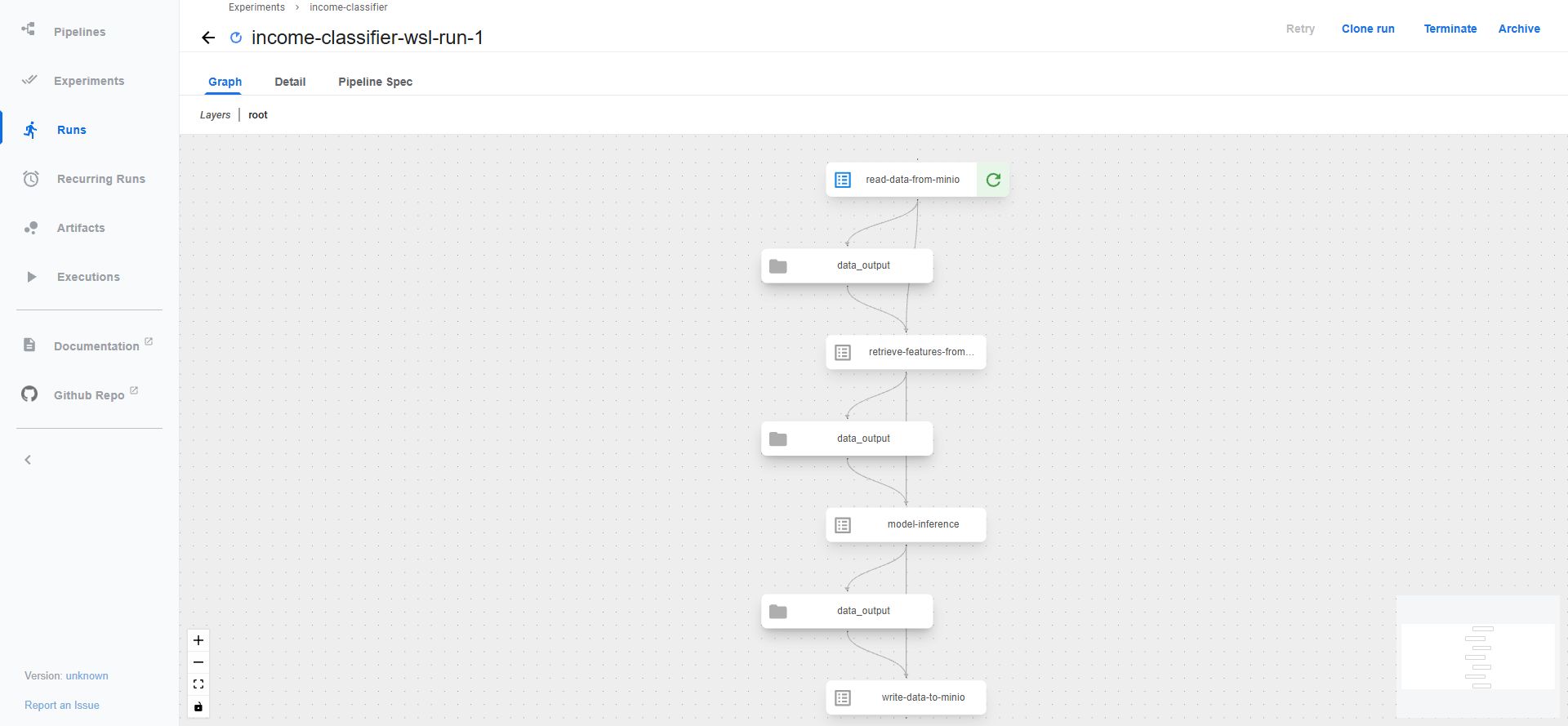
The KFP pipeline during execution
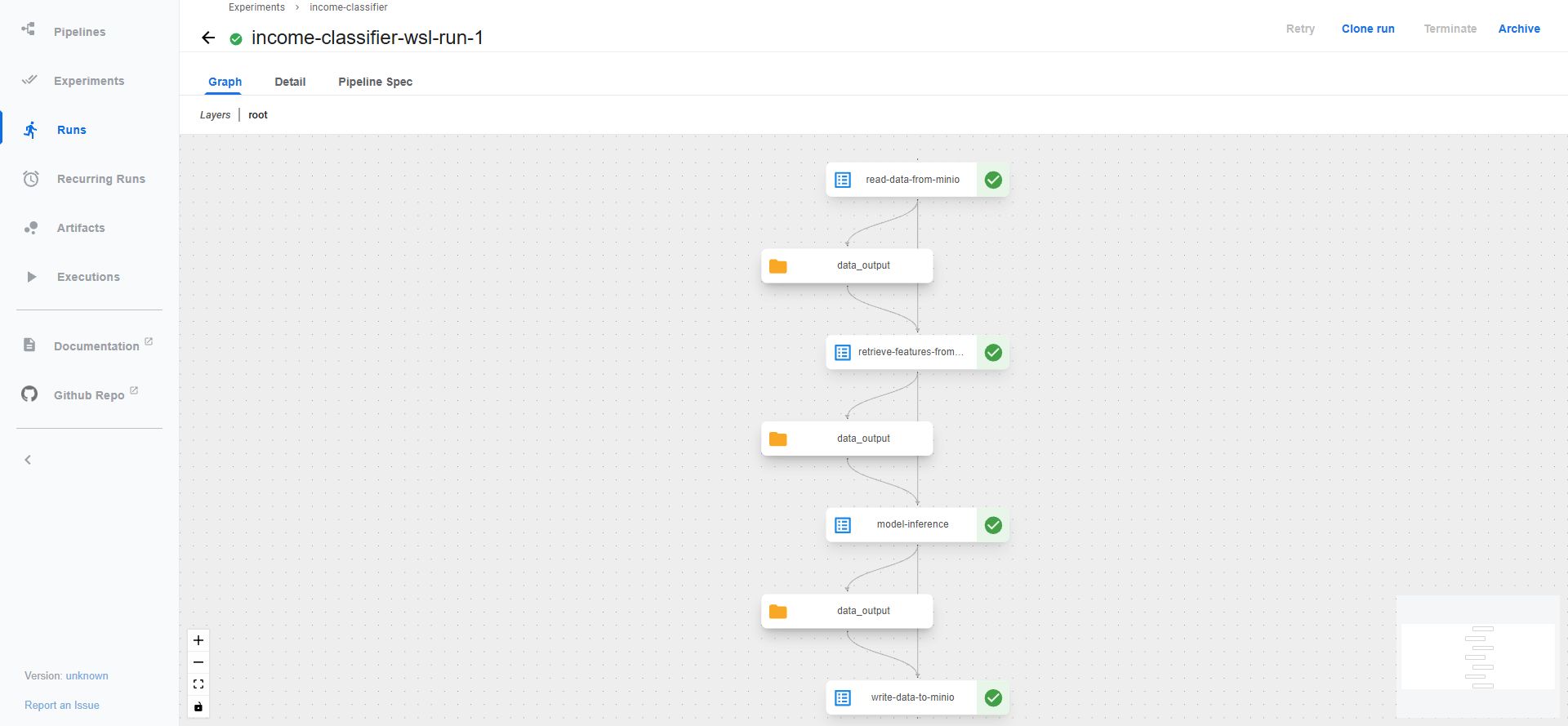
The KFP batch inference graph executed in this WSL cluster
Checking Both the UI and kubectl
I also ran the following queries during and after execution. The Workflow name below is the actual name generated for this run. For another run, check your own name in the output of get workflows and substitute it.
kubectl --context kind-book-env -n kubeflow get workflows
kubectl --context kind-book-env -n kubeflow get pods \
  -l workflows.argoproj.io/workflow=income-classifier-pipeline-j4b4j
kubectl --context kind-book-env -n kubeflow get jobs

Workflow success and completed task Pods checked with kubectl
The task Pods showed 0/2 Completed. This was not a readiness failure: both containers had finished their work and exited. These Pods need to be interpreted differently from service Pods, such as the MLflow server, which keep running.
For the model inference task, I checked the main container's logs:
kubectl --context kind-book-env -n kubeflow logs \
  income-classifier-pipeline-j4b4j-system-container-impl-3969511708 \
  -c main --tail=18
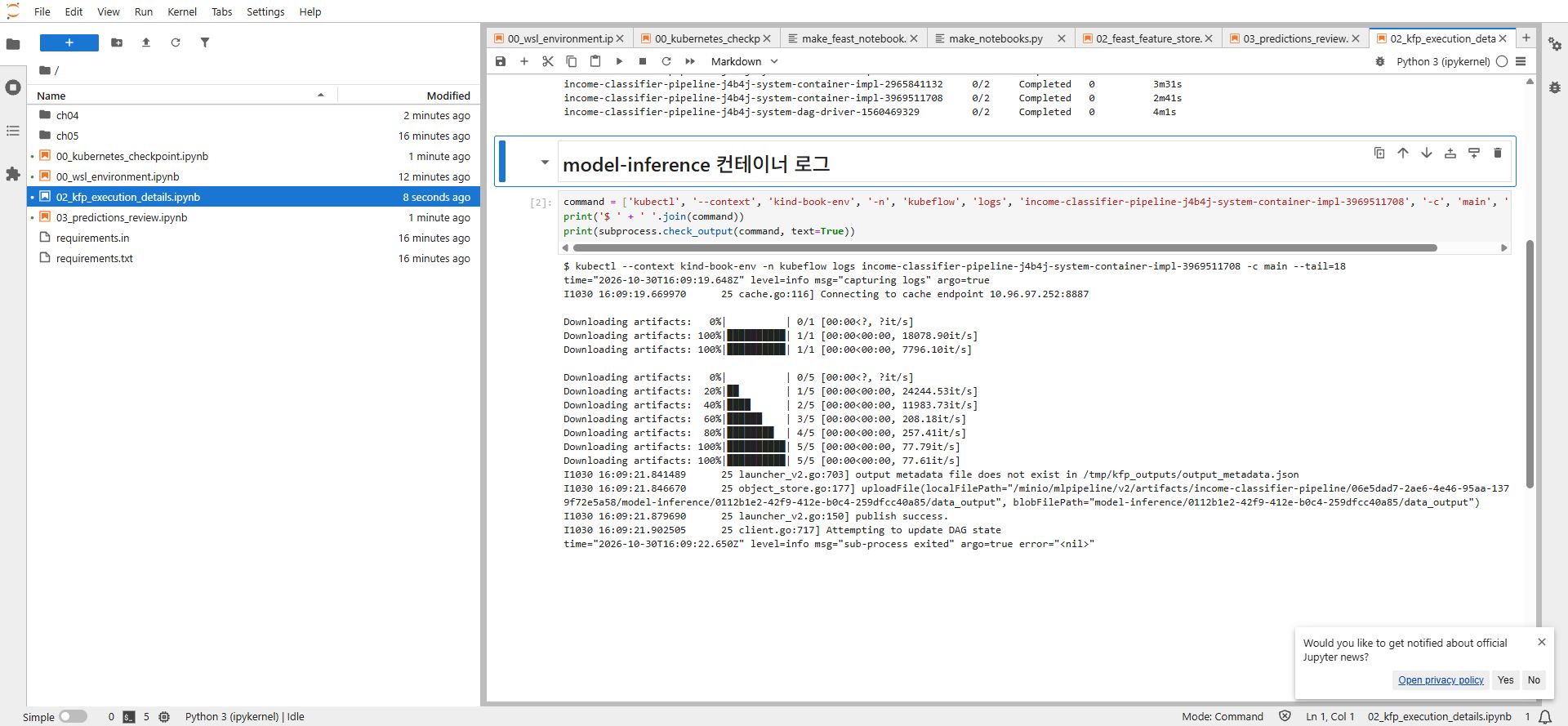
Model file downloads and result uploads checked with kubectl logs
The logs showed artifact downloads, the inference output upload, publish success, and sub-process exited with error="<nil>". Rather than relying on a single log line, I checked the Workflow status and the final output file as well.
9. Checking the Actual File After the Success Indicator
Even when the KFP UI shows green check marks, the intended output still needs to be checked in the final bucket.
python book/ch05/show_predictions.py
Reading the file produced these results:
rows, columns: (30162, 91)
model input columns: 90
user_id in output: False
missing prediction values: 0
The file size was 282,569 bytes. Prediction values ranged from 0.0 to 1.0, with a mean of approximately 0.2494. This mean is a summary statistic of the file, not an accuracy or model quality metric.
The reference guide reports 92 columns, but this run produced 91 columns. The saved column_list.pkl contained 90 model input columns, and the output consisted of those columns plus one prediction column. I recorded the measurements from this file rather than copying the figures from the reference post.
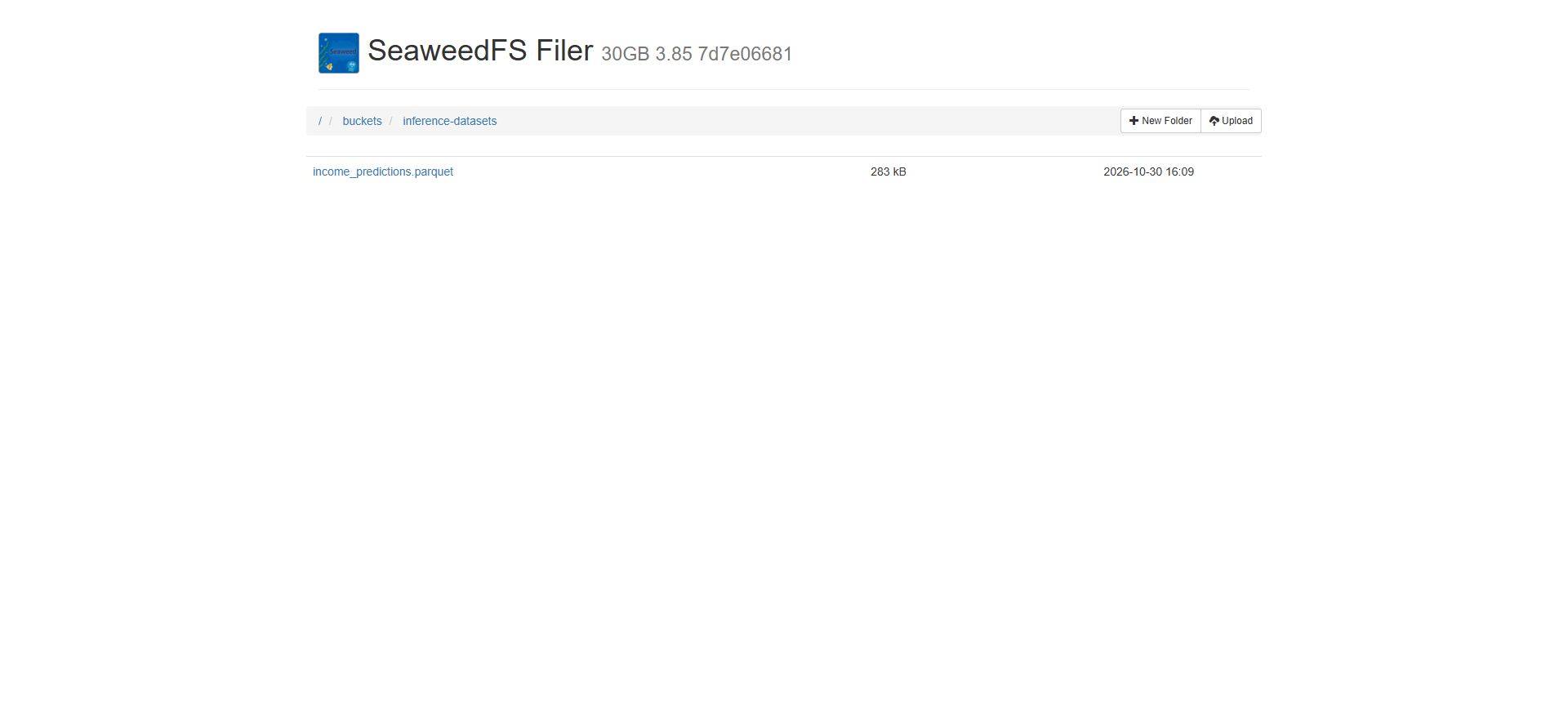
The prediction file from this run in the final bucket
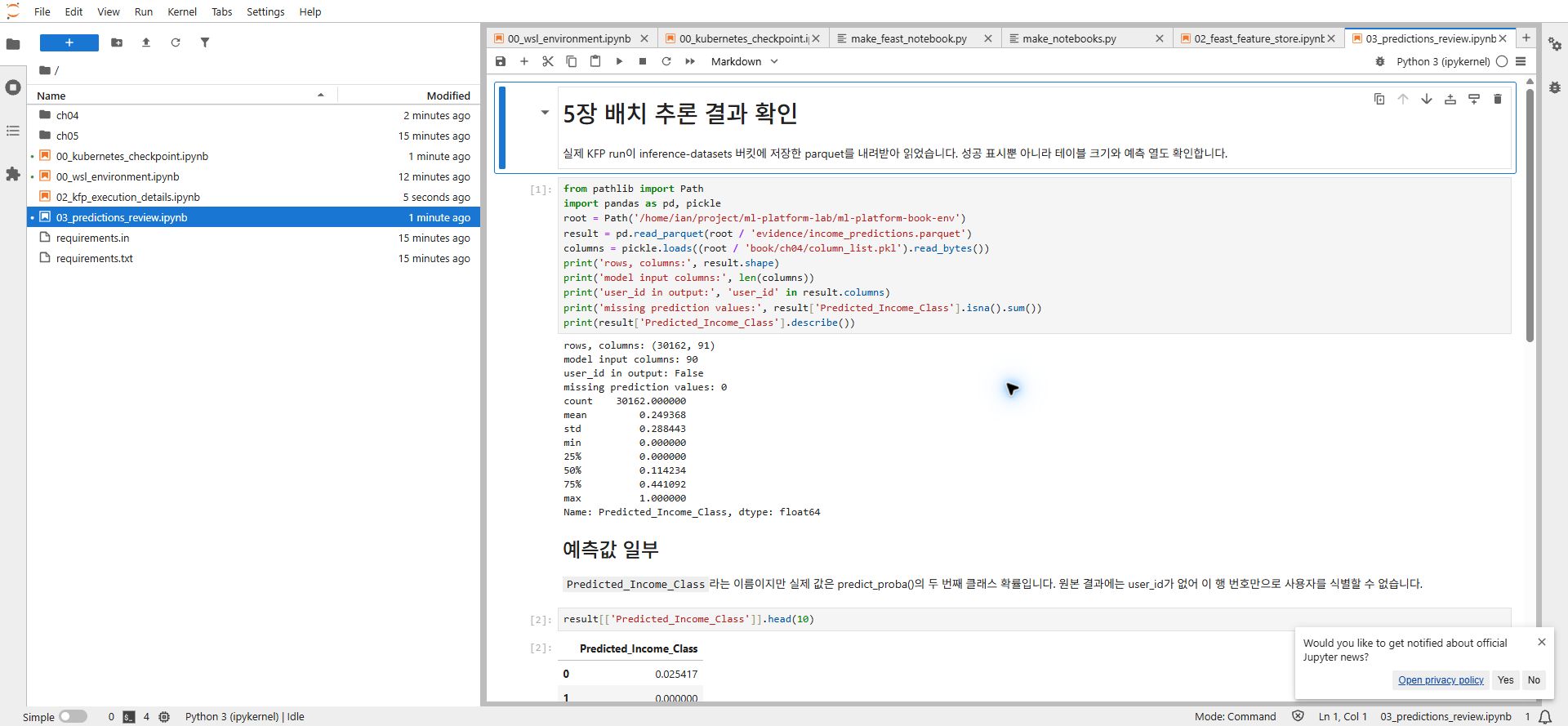
Output data and dimensions checked by reading the parquet file
Parquet is a binary format for storing tabular data. Garbled characters or PAR1 appearing when a file is opened as text in a browser do not automatically mean it is corrupt. Reading the actual table with a tool such as pandas is a more reliable check.
Successful Execution and Business Usability Are Separate Questions
The original output did not contain user_id. The inference code removes the ID from the model inputs and does not add it back to the results. Excluding an ID from model inputs and making it impossible to identify the user associated with a prediction are separate issues.
For a real service, the output should also retain the user ID, reference time, and specific model version.
Although the prediction column is named Predicted_Income_Class, the original code stores the second class value returned by predict_proba(). A value such as 0.7 is therefore an estimated probability, not a class number. The code does not include a threshold for converting the probabilities into 0/1 decisions.
The original code selects a model using test scores. For production model selection, a separate approach should be considered: choose candidates using a validation set and reserve the test set for the final assessment. Producing a prediction file in this exercise does not, by itself, validate the model's generalization performance or suitability for a business use case.
10. What I Verified in This WSL Exercise
This run focused on checking whether the book's model training, feature preparation, and batch inference workflow could also be connected in WSL.
I prepared Docker Engine and the CLI tools inside Ubuntu, then ran the book's two notebooks in a Python 3.11 virtual environment. I checked the four MLflow runs and registered model, Feast historical and online retrieval, the success of all four KFP tasks, and the final prediction file in S3. I also checked the additional preparation required for WSL and the address differences between execution locations.
These are the points I should be able to explain again:
- MLflow tracks training settings, results, and model files; it does not train the model on your behalf.
- Having definitions in the Feast Registry does not mean the values are already in Redis. apply and materialize need to be distinguished.
- Historical retrieval requires a reference time. The latest online values and values from a past point in time serve different purposes.
- WSL notebooks and Kubernetes Pods use different connection addresses. Check the execution location before copying localhost.
- After KFP reports success, check the final file's dimensions, contents, and user identifier columns.
The central lesson from this study was checking where models and data are stored and which addresses and file names the next step uses to retrieve them, beyond installing the three tools individually.
Reconnecting or Shutting Down
I left the environment in place so the results could be checked again. To reconnect, check the cluster status and start forward and JupyterLab.
cd ~/project/ml-platform-lab/ml-platform-book-env
source .venv-book/bin/activate
python bookenv.py status
python bookenv.py forward
In another terminal:
cd ~/project/ml-platform-lab/ml-platform-book-env
source .venv-book/bin/activate
jupyter lab --notebook-dir book --port 8890 --ip 127.0.0.1 --no-browser
Pressing Ctrl+C stops the port forwarding or JupyterLab connection process. python bookenv.py down deletes the cluster and the exercise records inside it, so I did not run it while keeping the results available for review.
References
- Book: Machine Learning Platform Engineering, Chapters 4–5
- Exercise guide: John Kim's “04. Connecting Experiments, Features, and Pipelines”
- Environment repository: johklo/ml-platform-book-env, commit e9048a3cdc32da84782be3682617754db3fe8f5f
- Chapter 4 code: practical-mlops/chapter-4, commit b67a8228336781c933dd68bb7dc520bd484c3371
- Chapter 5 code: practical-mlops/chapter-5, commit 332915b2f617e7fed8646b7c096653c87eed9d30
'MLOps & LLMOps' 카테고리의 다른 글
| [MLOps Platform Study] MLOps Maturity and the Role of Kubernetes (feat. Amazon EKS) (0) | 2026.10.25 |
|---|